
What is Memicards
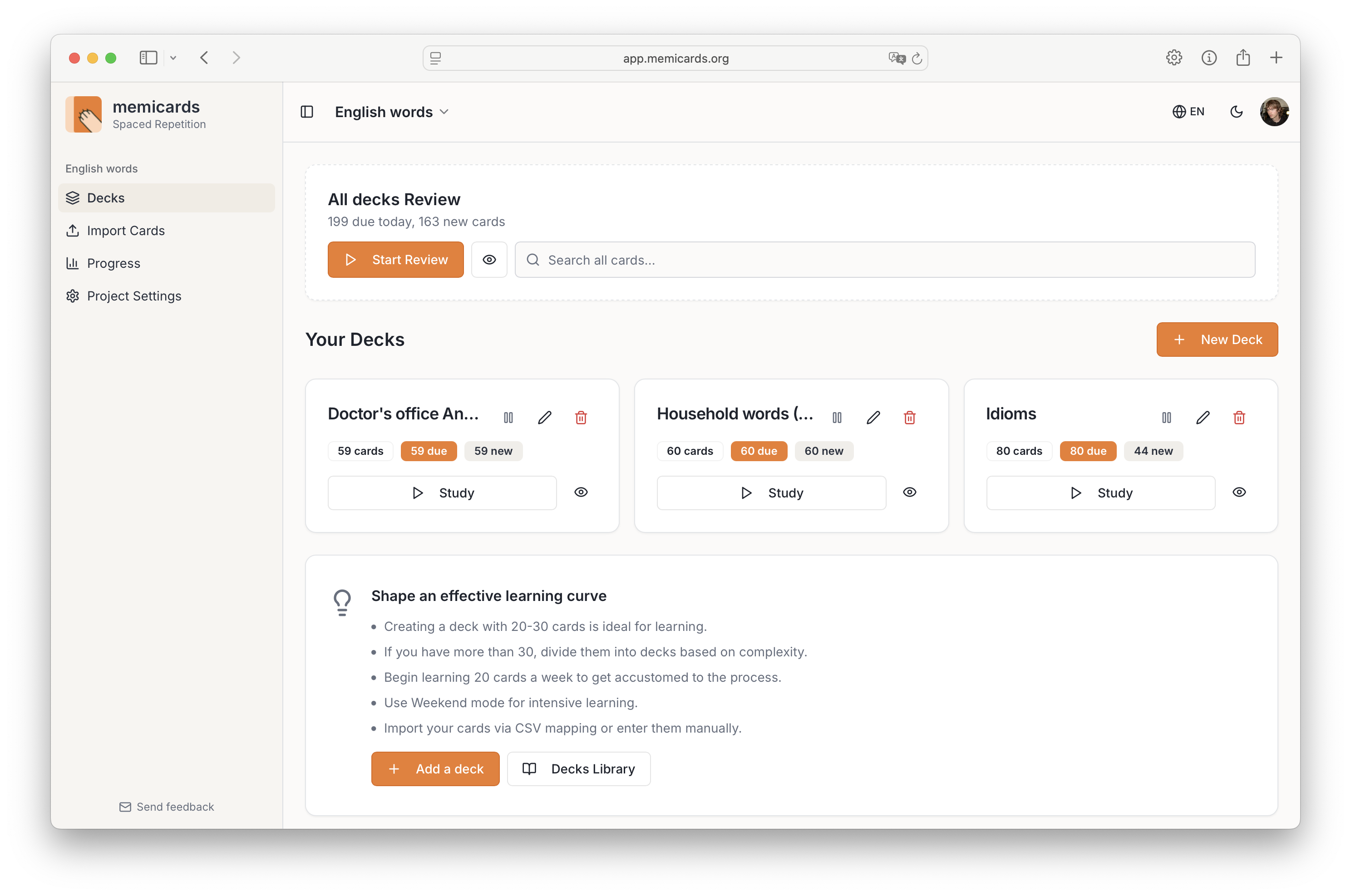
Memicards is a free spaced repetition app for learning vocabulary. It uses the SM-2 algorithm to show you cards at the right moment — just before you're about to forget them — so you spend less time studying and remember more. You bring your own words; Memicards handles the scheduling.
Main Concepts
Memicards organizes your learning into a simple hierarchy: Projects → Decks → Cards.
Project — a top-level container for a learning goal, such as "Spanish for Work" or "Armenian A1". Each project has its own decks, settings, and progress stats. Your first project is created automatically when you sign up.
Deck — a set of flashcards within a project, typically grouped by topic: "Restaurant Vocabulary", "Irregular Verbs", "Numbers 1–100". One project can have as many decks as you need.
Card — the basic unit of learning. Each card has a word (front), a translation (back), and two optional fields: an example sentence and a mnemonic association. Both optional fields significantly improve retention.
Review session — a study session where the SM-2 algorithm shows you cards that are due today. You rate each card (Again / Hard / Good / Easy) and the app reschedules it accordingly.
Practice mode — casual review without affecting your statistics or scheduling. Useful for a quick run-through before an exam.
How to Get Started
1. Sign up
Create an account at app.memicards.org. A default project is created for you automatically — you don't need to set anything up first.
Go to your project and create a deck. You can add cards in three ways:
- Manually, one at a time
- By importing a CSV file (if you already have a word list)
- From the Decks Library — ready-made decks you can add in one click
3. Configure your review settings
Open Settings to set how many new cards and review cards you want to see per day. If your schedule varies, enable Weekend Learner Mode to set different limits for weekdays and weekends.
4. Start reviewing
On the main screen, you'll see how many cards are due today. Open a deck and start a review session. Rate each card honestly — the algorithm depends on your ratings to schedule correctly.
5. Track your progress
Check the Progress section to see your retention rate, review history, and which cards are giving you trouble.
How to Create a New Project
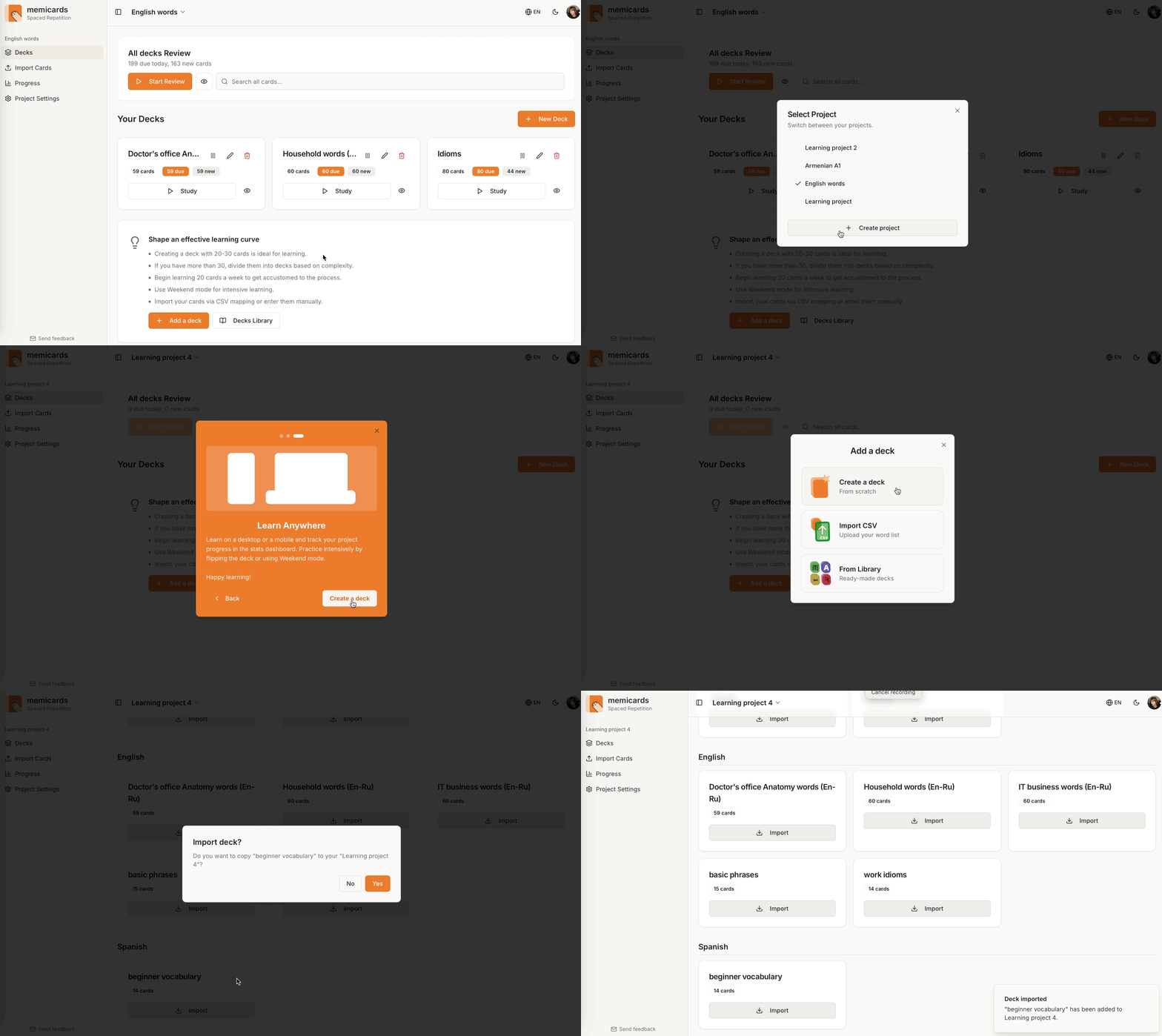
Open the project selector dropdown in the top header and choose "New project". Give it a name and confirm. The new project starts empty — add decks and cards as you normally would. You can switch between projects at any time using the same dropdown.
Searching Cards
On the main Decks screen, there is a search bar labelled "Search all cards…" inside the All Decks Review card at the top.
Type any word or phrase and the app instantly searches across all cards in all decks within the active project. Results show the word, its translation, and which deck the card belongs to. The summary line tells you how many cards matched and how many decks they span — for example, "12 results across 3 decks".
Search covers four fields on each card: the word, the translation, the example sentence, and the mnemonic association. Clear the search bar to return to the normal deck list. Search does not affect review or practice sessions — it is a read-only lookup tool.
Pausing a Deck
There are two ways to pause a deck:
- Main Decks screen — on desktop and tablet, each deck card has a Pause icon (⏸) in the top-right corner.
- Inside a deck — open the deck, tap the ⋮ menu (top-right), and choose "Pause deck".
Pausing hides a deck from study and practice sessions. All progress — ease factors, intervals, repetition counts — is preserved exactly. The paused deck is visually dimmed on the main screen with a "Resume deck" button.
Resuming:
- Paused less than 14 days → resumes instantly, cards pick up where they left off.
- Paused more than 14 days → you get a choice: "Reset overdue to today" (cards are rescheduled so the backlog doesn't pile up at once) or "Keep backlog as-is" (all overdue cards stay in the queue exactly as they were).
While a deck is paused, it is removed from Progress dashboard stats and from the All Decks Review card counts.
Creating Cards and Decks
Manual entry
Create a deck from the main screen, then add cards one at a time using the card form. Each card has two required fields (word and translation) and two optional ones (example sentence and mnemonic association). Fill in the optional fields whenever you can — words learned in context stick significantly better than isolated vocabulary.
How many cards should a deck have?
Aim for 30–100 cards per deck. Smaller decks are easier to finish and give you a clear sense of progress. Very large decks (200+) tend to feel overwhelming and make it harder to see improvement. If your word list is long, split it by topic — "Food vocabulary", "Travel phrases", "Numbers" — rather than putting everything in one deck.
Importing from CSV
If you already have a word list — from a textbook, another app, or a spreadsheet — you can import it as a CSV file. Go to Import → Batch Import and upload your file.
word, translation, sentence, associationThe sentence and association columns are optional and can be left empty. Both comma and semicolon separators are accepted.
Most apps let you export your vocabulary as CSV. In Anki, use File → Export → Notes in Plain Text. In Quizlet, use Export → .txt (then change the delimiter to match). In a spreadsheet, just save as CSV.
Creating cards with AI
Memicards doesn't have a built-in AI card generator, but you can create a CSV using any free LLM — ChatGPT, Claude, Gemini, or similar.
Generate 50 common Spanish travel phrases with English translations and example sentences. Format as CSV with columns: word, translation, sentence, association.
Copy the result into a .csv file and import it via Batch Import. You can ask the model to generate in any language pair, at any difficulty level, on any topic.
Decks Library
The Decks Library is a built-in collection of ready-made decks you can add to your project in one click — no CSV needed.
Where to find it:
- Import page → "Decks Library" tab (next to "Batch Import")
- Main Decks screen → scroll down to the tips card → "Decks Library"
How to import:
- Browse the list — each deck shows its name, language, and card count.
- Click a deck to preview all its cards (word, translation, example sentence, association).
- Click "Import to [your project]" and confirm.
The deck is copied into your active project as a new deck, ready to study. Importing is non-destructive — it creates a copy, and you can edit or delete any card just like a manually created one. All SM-2 progress starts fresh.
Exporting Cards
From inside a deck
Open any deck, tap the ⋮ menu → "Export CSV". You get a .csv file with all currently visible cards. If a filter is active (Due, New, Starred), only those cards are exported — set the filter to "All Cards" first to export the full deck.
From Project Settings
Go to Settings → Data Management:
- Export cards (CSV) — all cards across every deck in the project
- Export reviews (CSV) — full review history with ratings, dates, and intervals
- Export all (JSON) — a complete backup of the entire project
Use "Export all (JSON)" as a backup before making large changes like deleting a deck or moving cards between projects.
The CSV export format matches the import format, so you can export a deck, edit it in a spreadsheet, and re-import it.
About SM-2
How the algorithm works
Every card in Memicards has its own schedule. After each review, you rate how well you remembered the card:
- Again — didn't remember. The card resets and will appear again soon.
- Hard — remembered, but with effort. The next interval is shorter than usual.
- Good — remembered correctly. The interval grows at the standard rate.
- Easy — recalled instantly. The interval jumps ahead significantly.
Based on your rating, the algorithm calculates two things: the interval (how many days until you see this card again) and the ease factor (how quickly that interval grows over time).
For a new card, the first two intervals are fixed: 1 day, then 6 days. After that, each interval is multiplied by the card's ease factor — so a card with an ease factor of 2.5 goes from 6 days to 15 days, then to 37 days, and so on.
If you rate a card "Again", the interval resets to 1 day and the ease factor drops slightly. If you consistently rate a card "Hard", the ease factor decreases, and the card will keep appearing more frequently. Cards you know well gradually disappear from your daily queue — by design.
What this means in practice
Cards you know well appear less and less often. Cards you struggle with stay in frequent rotation. Over time, you spend your review time exactly where it's needed most — not on things you already know, and not skipping over things you've forgotten.
The algorithm requires honest ratings to work correctly. If you mark "Easy" on a card you're not sure about, you'll forget it before it comes back. If you mark "Again" more than necessary, your queue grows. Rate what actually happened, not what you wish had happened.
How Long Until a Deck Is Memorized?
There's no single answer, but here's what to expect with consistent daily review.
A single card moves through roughly 5–7 review sessions before reaching a long interval (3–4 weeks). With good recall, this takes about 3–4 weeks from first introduction.
A deck of 50 cards, adding 10 new cards per day, will be fully introduced in 5 days. After that, the review load stays manageable — typically 10–20 cards per day — and peaks somewhere around week 3–4 as all cards cycle through their early repetitions. By week 6–8, most cards will be on long intervals and appearing only once every few weeks.
What "memorized" means in practice: a card you consistently rate "Good" or "Easy" will have an interval of 30+ days after about 5–6 successful reviews. At that point, a brief monthly review is all you need to maintain it.
The most important variable is consistency. Reviewing for 10 minutes every day produces far better results than a long session once a week — the algorithm is designed around regular, short study.